Load the current board explorer and select "All filters":
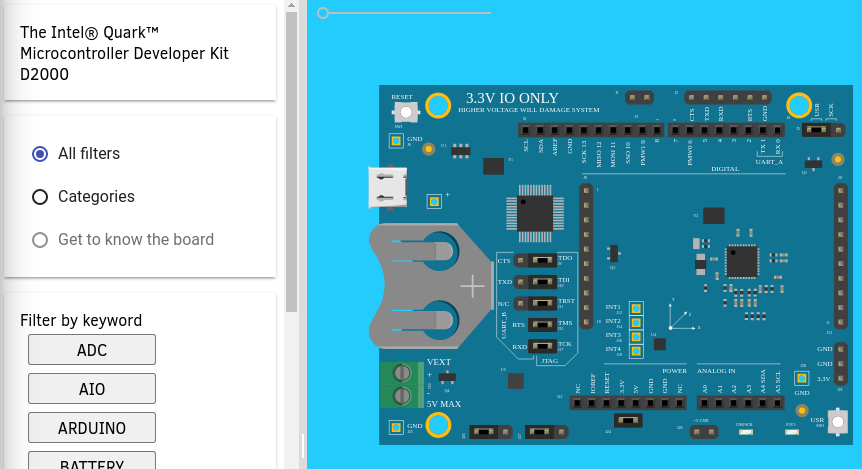
Jumper J5 (USR|SCK select), in the upper right corner, has the following relationships:
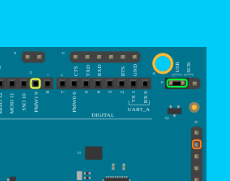
If pins 1 and 2 are jumpered, J3 Pin 2 becomes the control for LED DS1. Hovering over J5 Pins 1-2 turns that jumper position CYAN, indicating what you are currently hovering over.
If you click on that jumper position, that jumper turns YELLOW to indicate "selected."
The pins "related" to the hover or selected item turn GREEN. The pins electrically "connected" will turn BURNT ORANGE.
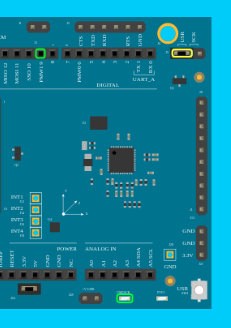
If you then move your mouse over J3 Pin 2, it shows you that J13 Pin 9 is physically connected to J3 Pin 2:
As someone trying to use the board, gaining instant insight into the various pin connections is really useful.
However even though the UI is showing the various colors, what they mean is not obvious. I want to add a key to the screen that shows the colors and what they mean. The colors should be bright and distinctly in contrast to the board itself so you can a) Quickly see what is highlighted b) Tell the colors apart.
What other kind of visual queues should we consider? Are there better colors?
Load the current board explorer and select "All filters":
Jumper J5 (USR|SCK select), in the upper right corner, has the following relationships:
If pins 1 and 2 are jumpered, J3 Pin 2 becomes the control for LED DS1. Hovering over J5 Pins 1-2 turns that jumper position CYAN, indicating what you are currently hovering over.
If you click on that jumper position, that jumper turns YELLOW to indicate "selected."
The pins "related" to the hover or selected item turn GREEN. The pins electrically "connected" will turn BURNT ORANGE.
If you then move your mouse over J3 Pin 2, it shows you that J13 Pin 9 is physically connected to J3 Pin 2:
As someone trying to use the board, gaining instant insight into the various pin connections is really useful.
However even though the UI is showing the various colors, what they mean is not obvious. I want to add a key to the screen that shows the colors and what they mean. The colors should be bright and distinctly in contrast to the board itself so you can a) Quickly see what is highlighted b) Tell the colors apart.
What other kind of visual queues should we consider? Are there better colors?