GitHub Codespaces is a browser environment that can be used to complete the exercises from this course without needing to install anything on your local machine. This codespaces.md document will explain how to launch and configure the Codespaces environment.
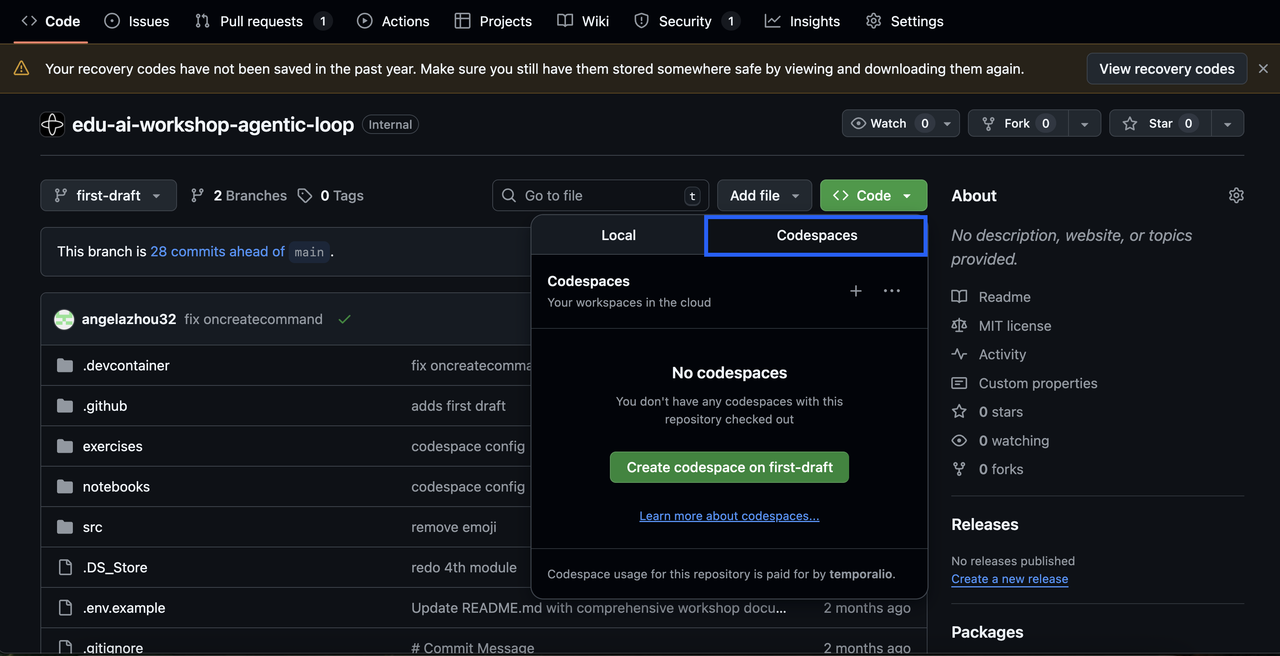
To launch the codespace, click on the green "Code" drop-down menu in the top-right corner of the repo display (to the left of the right-hand sidebar), navigate to the Codespaces sub-tab if it is not already focused, and click the + icon.
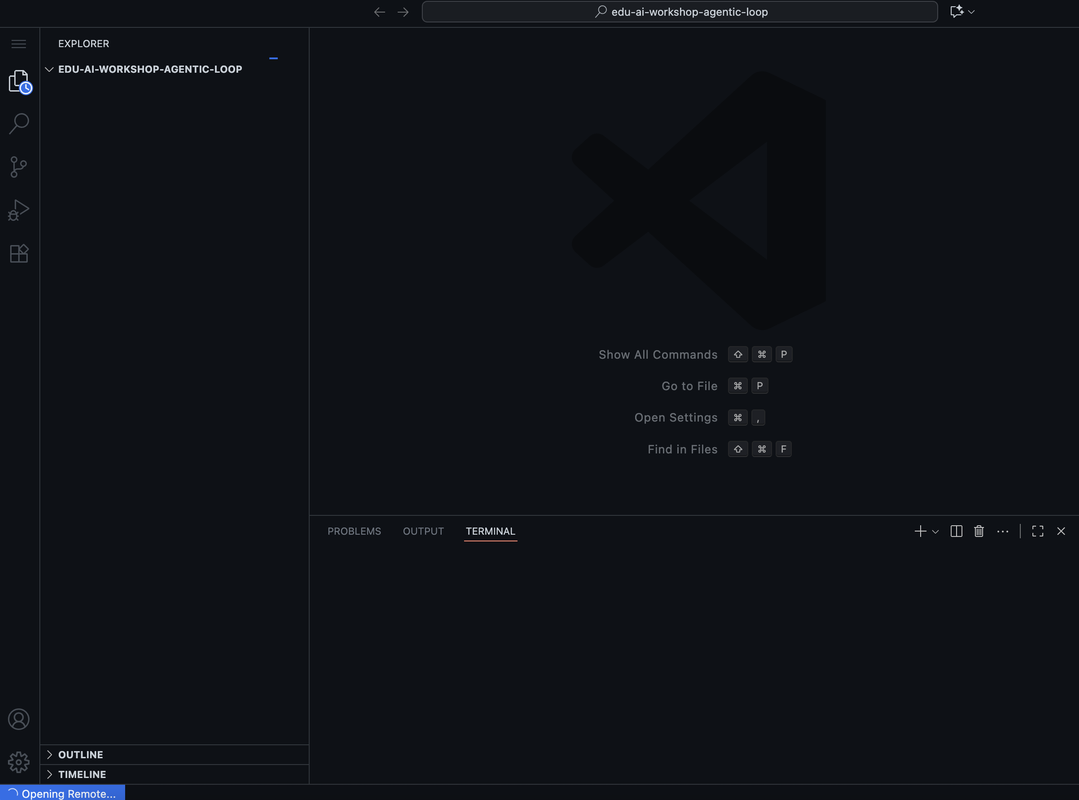
This will open a new tab containing a familiar VSCode-style interface. It may take up to a minute for the tab to populate, during which time "Opening Remote…" will be displayed in the bottom left corner.
Eventually, the Codespace will display the readme for the repo in the top two-thirds of the screen, and a Temporal Service running on the command line in the bottom third of the screen:
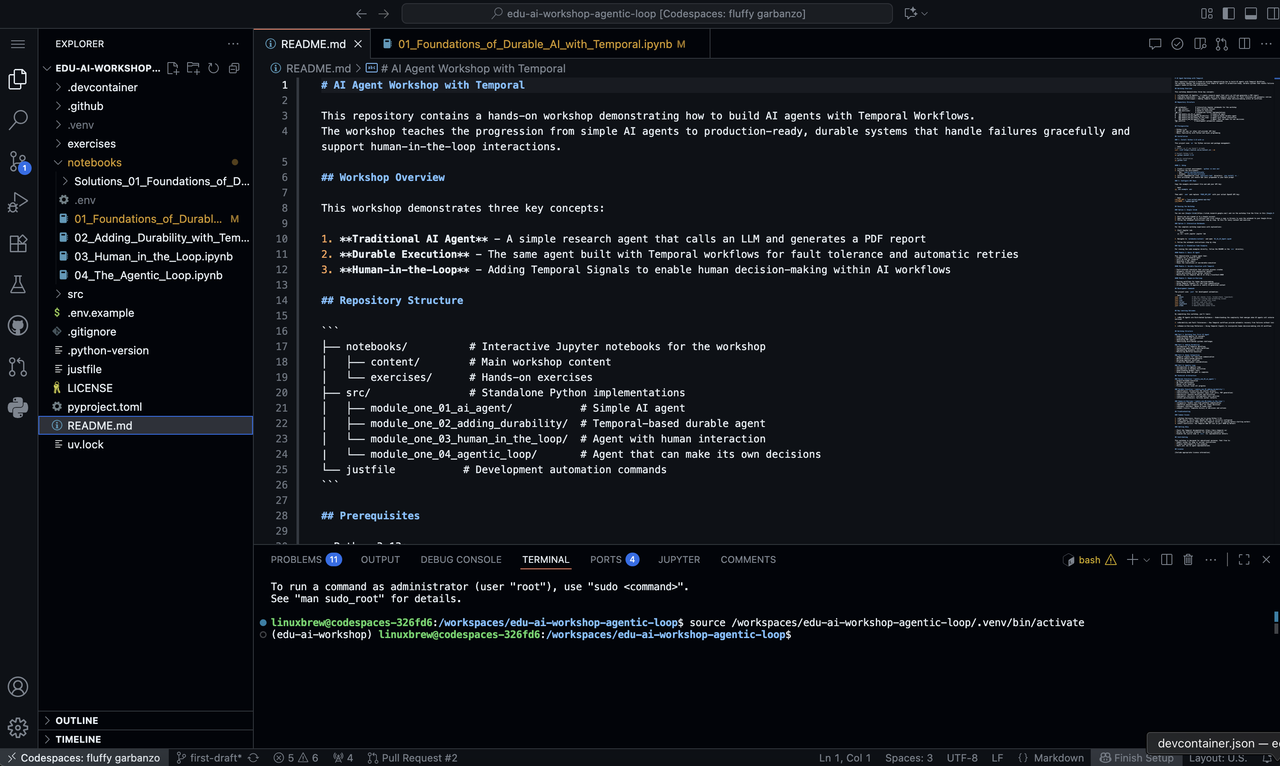
There are two things you’ll want to do before getting started: open the Web UI, and open some terminal windows to work in.
To open the Web UI, click on the "PORTS" tab near the middle of the screen (there may be a highlighted number next to it):
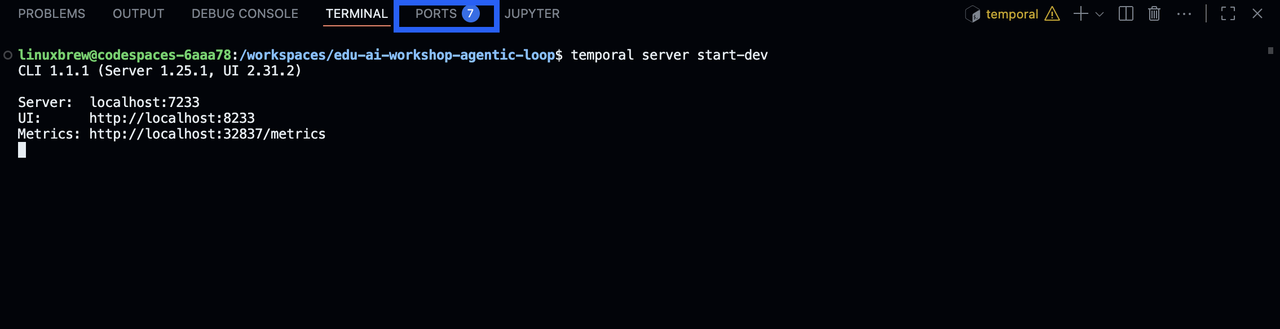
Then, on the row for Port 8233, Ctrl+click (Cmd+click on Mac) on the "Forwarded Address" link highlighted in blue like a regular URL:

This will open the Temporal Web UI in a separate tab:
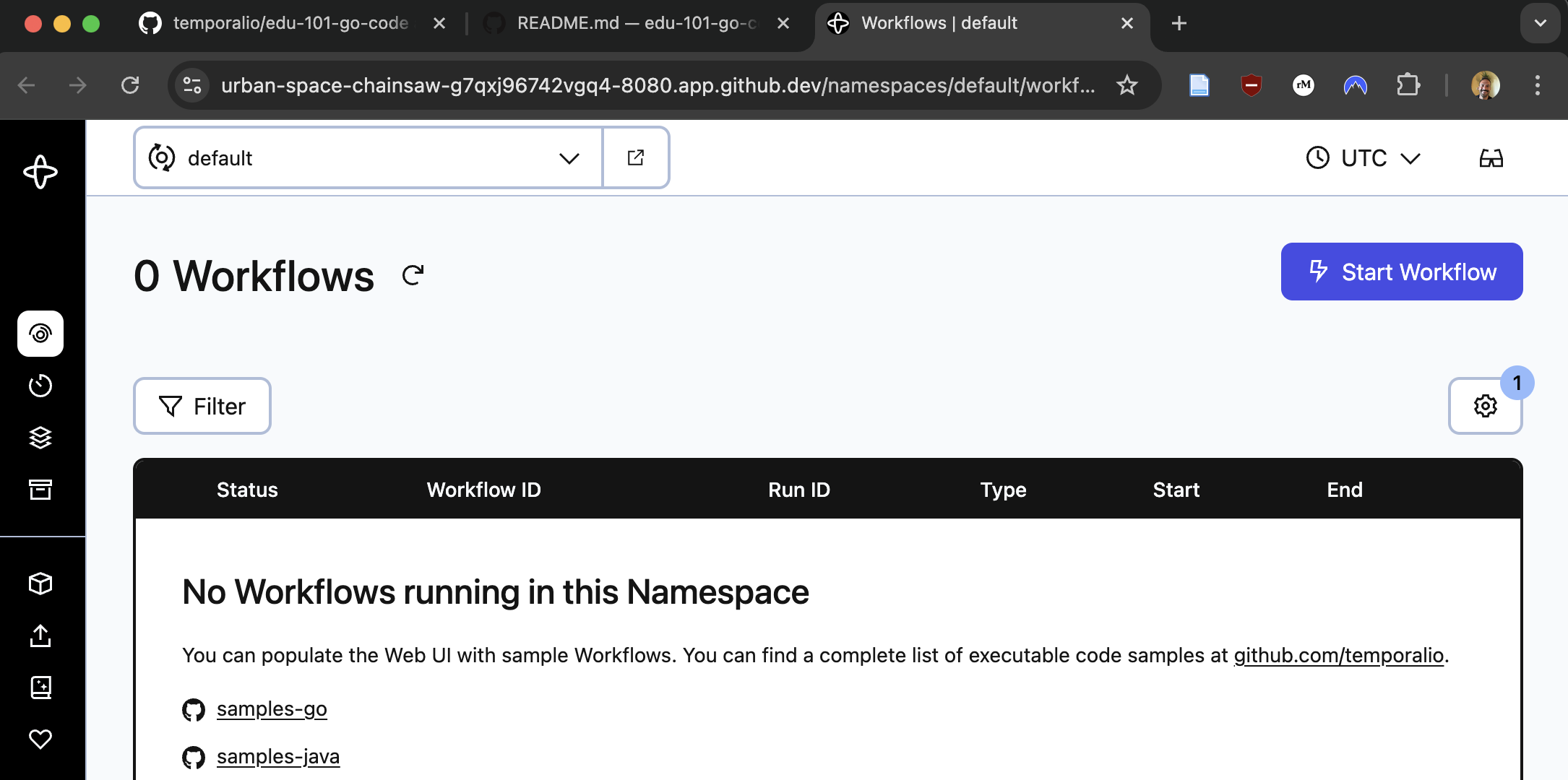
You should navigate to this tab any time you need to access the Web UI.
To open some work terminals, navigate back to the Codespaces tab, and click on "TERMINAL" next to the "PORTS" tab that you clicked on earlier.
Then, to create more work terminals for this workshop, use the drop-down arrow on the right side of the screen, navigate to "Split Terminal".
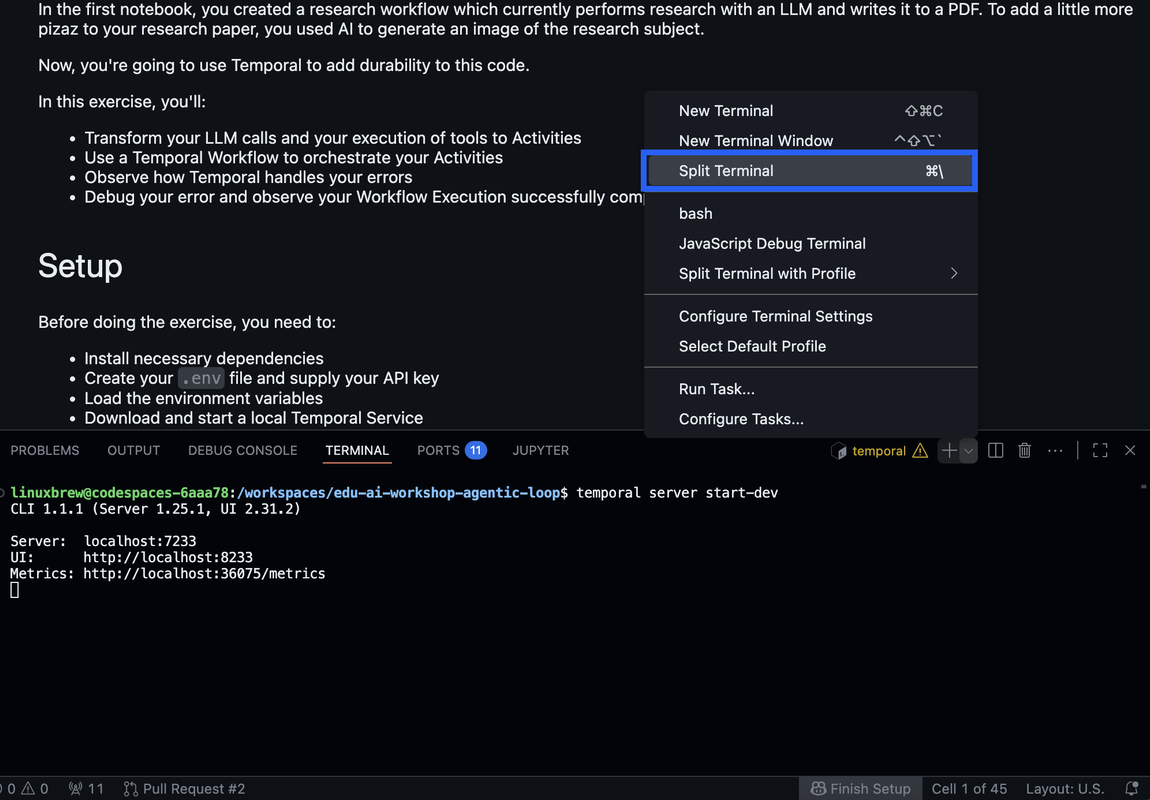
Repeat this for as many terminals as you need:
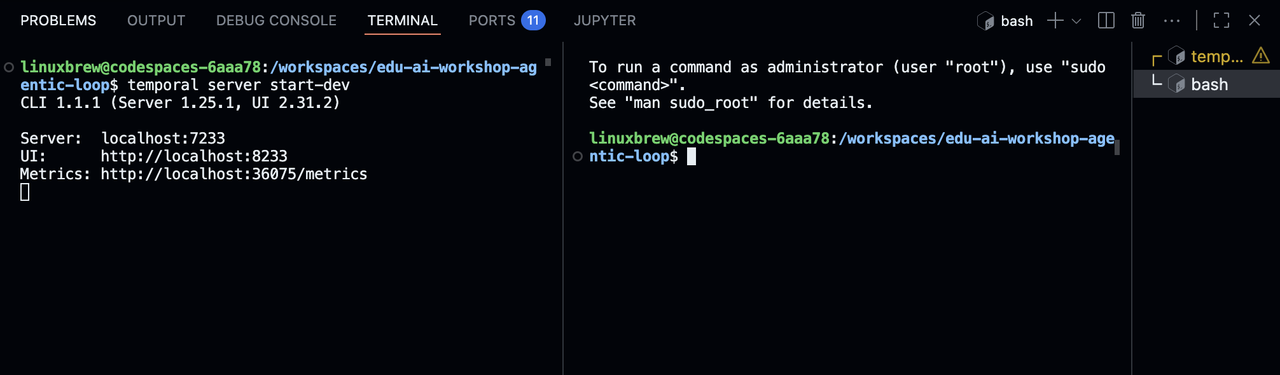
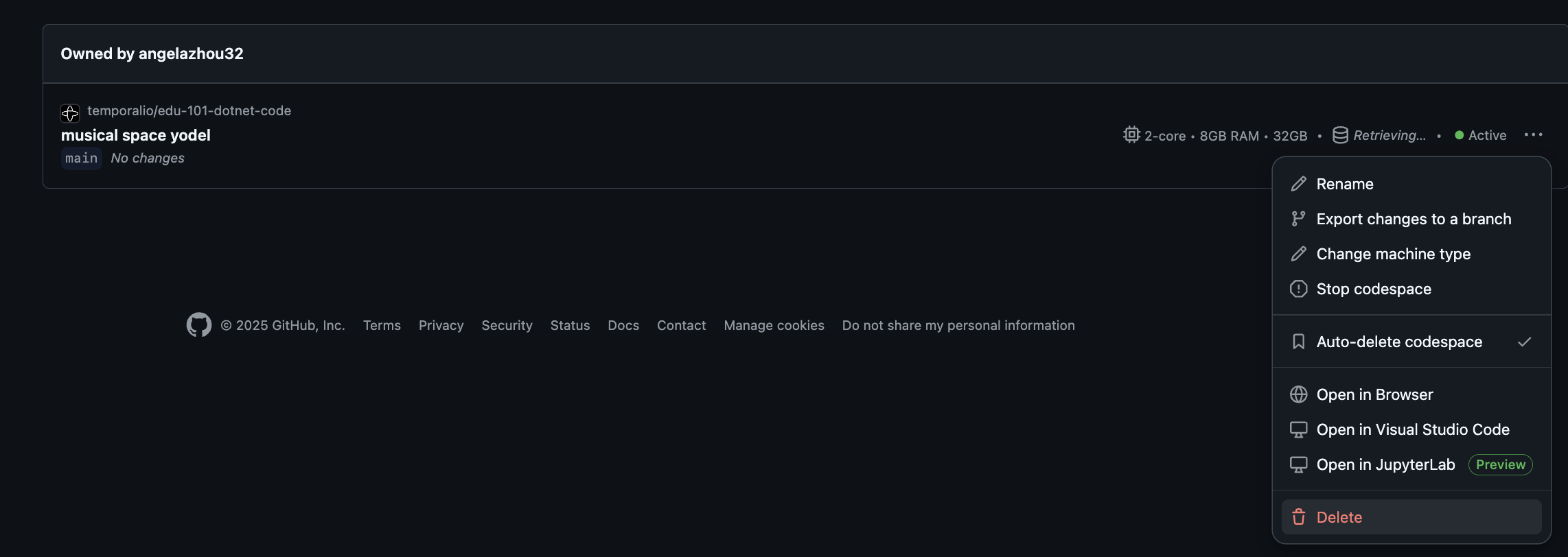
Your Codespace will automatically be stopped 30 minutes after you close the browser tab. This is to prevent excessive resource utilization. It can be resumed from the same part of the Github UI if needed, within 30 days of the last time it was used.
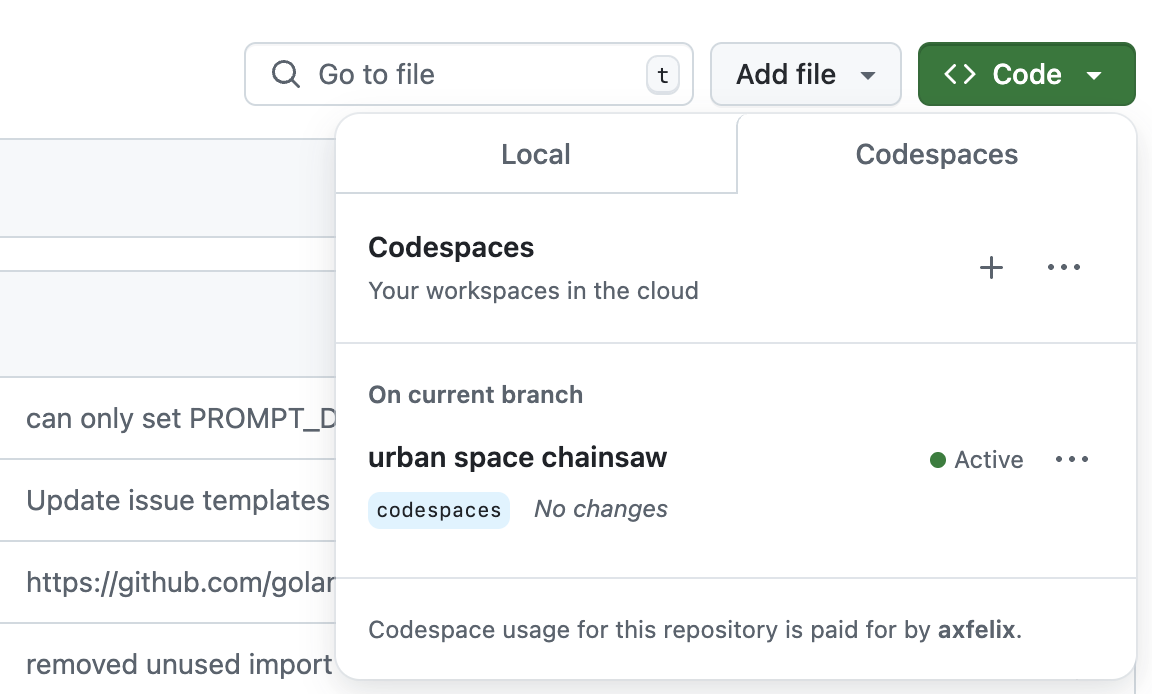
Once you are done with this course or the exercises, manually delete your codespaces. There are costs associated with storing codespaces. You should therefore delete any codespaces you no longer need. Here are the steps you need to take to delete your codespaces:
- Visit your codespaces page here.
- To the right of the codespace you want to delete, click the three dots, then click
Delete: