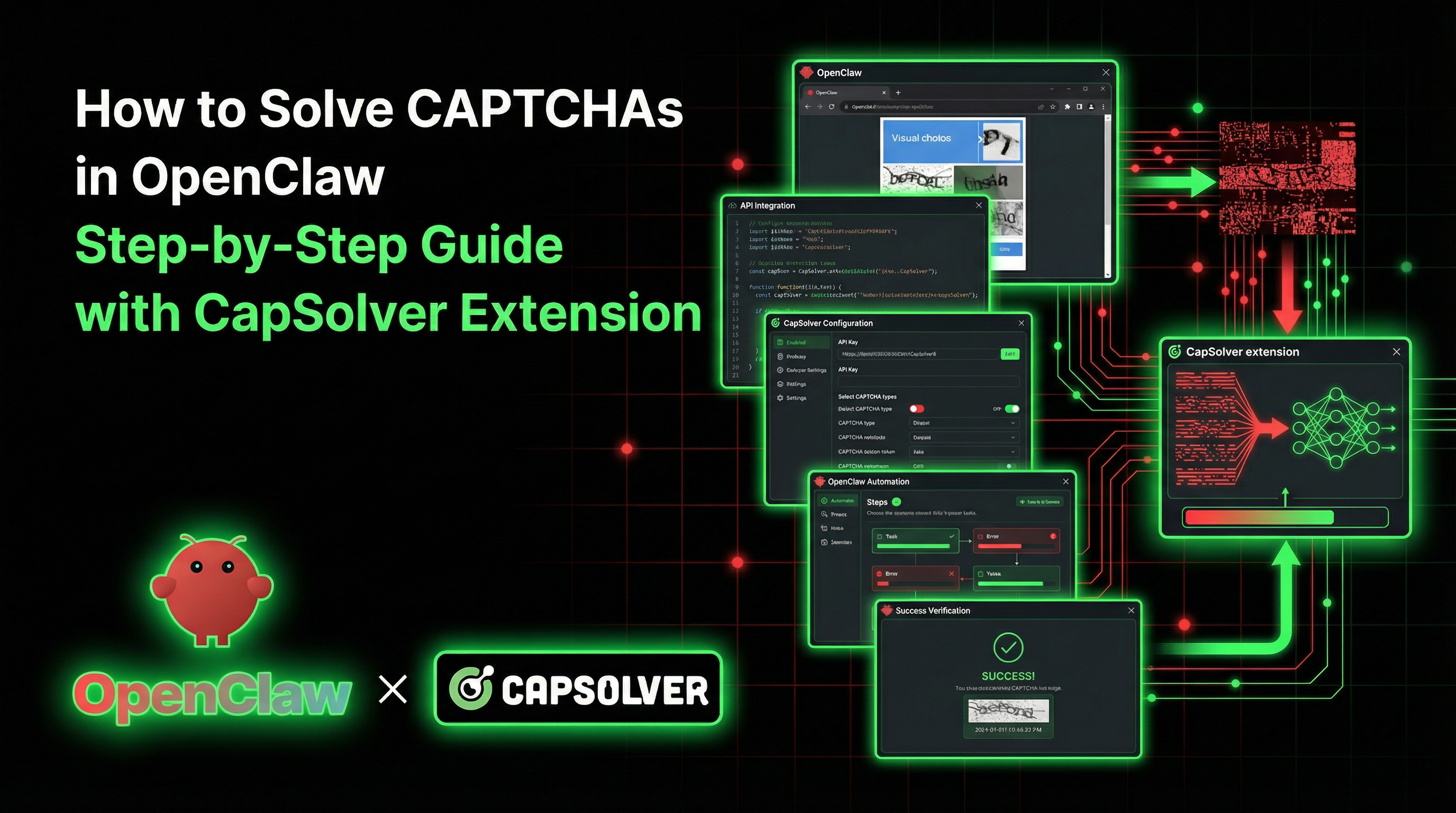



This repository provides a comprehensive guide and resources for integrating CapSolver with OpenClaw, enabling your AI assistant to automatically bypass CAPTCHA challenges during web browsing tasks. By leveraging the CapSolver Chrome extension within OpenClaw's dedicated browser environment, AI agents can navigate protected web pages, submit forms, and extract data without human intervention for CAPTCHA resolution.
- Introduction
- Why This Integration?
- Key Features of OpenClaw
- How it Works
- Getting Started
- Configuration
- Usage Examples
- Troubleshooting
- Best Practices
- Contributing
- License
In the realm of AI-driven web automation, CAPTCHAs often pose a significant barrier, halting automated processes and requiring manual input. OpenClaw, a powerful personal AI assistant, excels at web navigation and interaction but can be impeded by these security measures. This integration addresses that challenge by providing a method to automatically resolve CAPTCHAs, allowing OpenClaw to operate seamlessly.
Unlike traditional CAPTCHA-solving methods that often require complex API calls and code modifications, this approach is designed for simplicity and efficiency. By embedding the CapSolver Chrome extension directly into OpenClaw's browser, CAPTCHAs are handled invisibly in the background. The AI agent doesn't need explicit instructions to solve CAPTCHAs; it merely requires a brief waiting period before form submissions.
| Feature | Traditional (Code-Centric) | OpenClaw (Natural Language) |
|---|---|---|
| Setup | Writing custom service classes, API calls | Adding an extension path to the config |
| Execution | Manual API calls for tasks | Direct natural language interaction |
| Injection | Scripting token injection | Automated handling by the extension |
| Error Handling | Complex retry logic in code | Simple "wait" instruction to the AI |
| Versatility | Unique code for every CAPTCHA | Unified, automatic support for all types |
OpenClaw is an open-source, local-first AI assistant with a robust set of features:
- Multi-channel Communication: Interact with your AI via popular platforms like WhatsApp, Discord, Telegram, Slack, and more.
- Integrated Chromium Browser: A dedicated, isolated browser environment for the AI agent to perform web tasks.
- Local-first Design: Your data remains on your hardware, ensuring privacy and control.
- Extensible Plugin System: Customize and expand functionality with custom extensions.
- Voice Support: Engage with your agent using voice commands on various operating systems.
The CapSolver Chrome extension operates within OpenClaw's dedicated Chromium browser. When the AI agent navigates to a page containing a CAPTCHA, the extension automatically detects it, communicates with the CapSolver API to solve the challenge, and injects the solution token into the page. All of this occurs before the AI agent attempts any form submission, requiring only a sufficient waiting period from the agent's instructions.
graph TD
    A[User Prompt: "Go to page, wait 60s, submit"] --> B(OpenClaw Gateway)
    B --> C{AI Agent processes request}
    C --> D[Browser Tool: Navigate to URL]
    D --> E[Chromium renders page]
    E --> F{Page with CAPTCHA widget}
    F --> G[CapSolver Extension: Detects CAPTCHA]
    G --> H[CapSolver Extension: Solves via API]
    H --> I[CapSolver Extension: Receives Token]
    I --> J[CapSolver Extension: Injects into form]
    J --> K{AI Agent waits 60 seconds...}
    K --> L[Browser Tool: Click Submit]
    L --> M[Form submitted with valid token]
    M --> N[Result: "Success!"]
To begin, you will need:
- OpenClaw installed and its gateway running.
- A CapSolver account with an API key. You can register for CapSolver here.
- Compatible Browser: A version of Chromium or Chrome for Testing (Google Chrome 137+ no longer supports
--load-extension).
Detailed installation and setup instructions can be found in CONFIGURATION.md.
For comprehensive setup instructions, including downloading the CapSolver extension, setting your API key, and configuring OpenClaw's openclaw.json file, please refer to CONFIGURATION.md.
Learn how to effectively instruct your OpenClaw agent to handle CAPTCHAs without explicit commands. Practical examples for various scenarios are provided in EXAMPLES.md.
Encountering issues? Check out the Troubleshooting section in CONFIGURATION.md for common problems and their solutions, such as extension loading failures, CAPTCHA resolution issues, and browser crashes.
Maximize the effectiveness of your integration with these recommendations:
- Generous Wait Times: Always allow 30-60 seconds for CAPTCHA resolution.
- Natural Language Prompts: Frame your instructions conversationally for the AI.
- Monitor CapSolver Balance: Regularly check your credits at CapSolver Dashboard.
- Server Deployment: Use
noSandbox: trueandXvfbfor headless server environments.
For more details, refer to the Best Practices section in CONFIGURATION.md.
We welcome contributions to improve this guide and the integration process. Please follow these steps to contribute:
- Fork the repository.
- Create a new branch for your feature or bug fix (
git checkout -b feature/your-feature-name). - Make your changes and ensure they adhere to the project's coding standards.
- Test your changes thoroughly.
- Commit your changes with a clear and descriptive message (
git commit -m 'feat: Add new feature X'). - Push your branch to your forked repository (
git push origin feature/your-feature-name). - Open a Pull Request to the
mainbranch of this repository, describing your changes and their benefits.
This project is licensed under the MIT License. See the LICENSE file for details.