This repo contains the basics of automation testing and java which will covered as a part of Automation Testing Online Training.
- Automation Testing Basics
- Java Basics
- Create Maven Project
- Created By: Akash Tyagi.
- Reach me out at: [email protected]
-
For Selenium with Java Automation, you need below softwares:
-
JDK-Java Development Kit: https://www.oracle.com/in/java/technologies/javase-downloads.html
-
Eclipse: https://www.eclipse.org/downloads/
-
Maven: https://maven.apache.org/download.cgi
- Download this file: apache-maven-3.6.3-bin.zip
-
Step by Step instruction to install maven: https://mkyong.com/maven/how-to-install-maven-in-windows/
- Target to spend at least 20 hrs per week. Use tools like this to track: https://clockify.me/
- Complete the Workshops and Assignments on time.
- Present your learning in the form demos.
- Do lot of self reading.
- Pre-Reading of the Topic.
- Learn Less, Do more.
- Do not focus on how many topics you have learnt rather focus on the depth of what you are learning.


-
Read this to know basics of Maven: Click Here
-
Use below screen shots to create your first maven project.


- Make sure you check "create a simple project(skip archetype selection)" . See below screen shot

- GroupID + Artifact ID + version = Gives your project a uniq identity
- Also called as signature of the your project
- Group ID usually refers to your company and sub divisions
- Artifact ID refers to your project name
- For example, if you are working for a company lets say "infosys" and lets say you are working in a department whose name is "Center of Excellence or CoE". And assume your are automating an ecommerce application. Then group id and artifact id can be as below:
- Group ID:
com.infosys.coe - Artifact ID:
ECommerceAutomationTestFW - Version:
3.1.3
- Group ID:
- Full signature of the project on "maven repo" will be:
com.infosys.coe.ECommerceAutomationTestFW:3.1.3 - You will then upload your project artifacts and compiled code on online maven repository ClickHere
- This is important when some one else wants make use of your project.
- They can simply refer to your project from online maven repository.
- This is how we use Selenium, Junit, TestNG, Cucumber libraries in our project.


- Add properties tag in xml to include compiler version as
1.8

- Update the project after every POM.xml change.


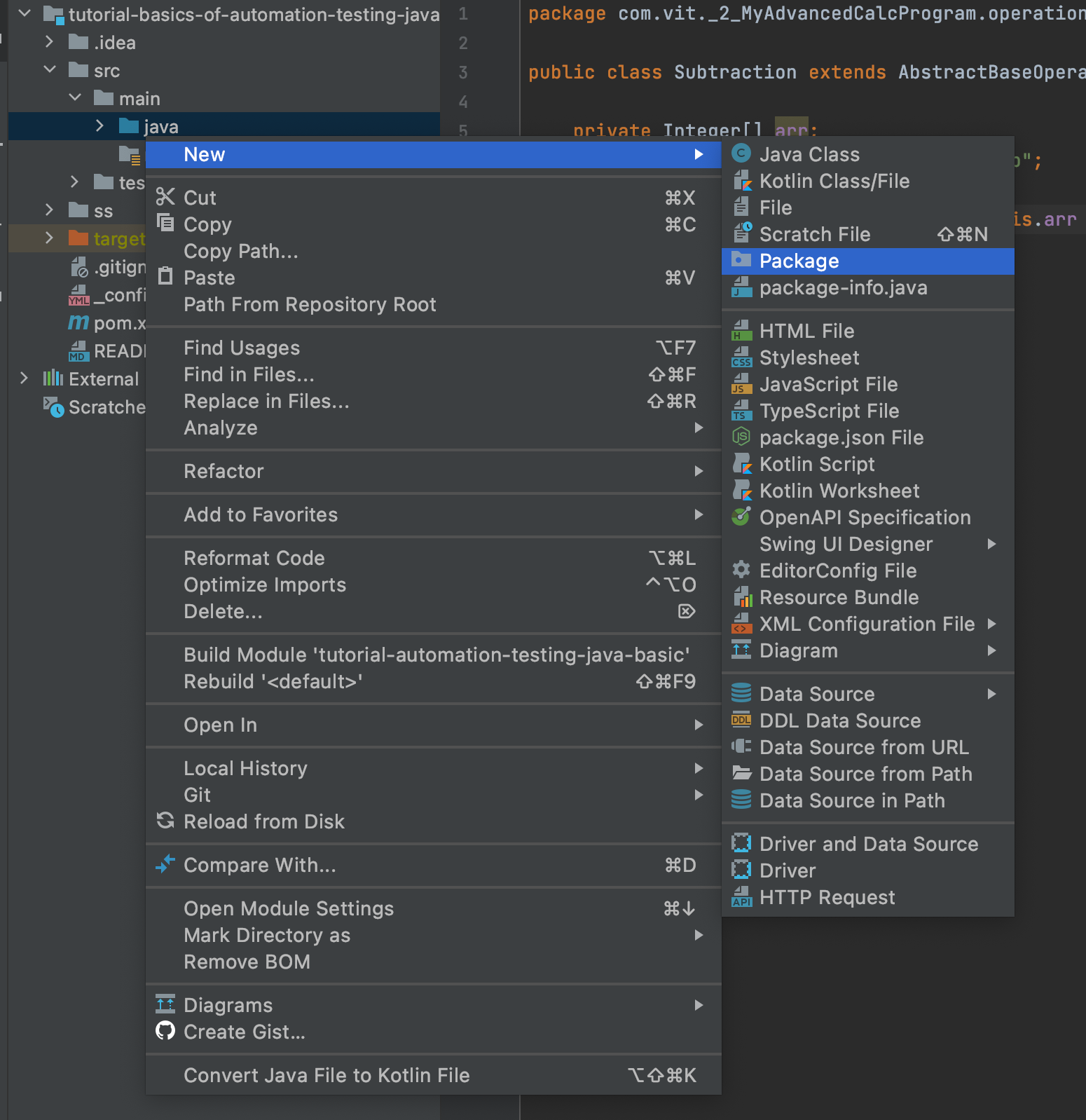
- Create the package


- You can run the project in two ways:
- Using Run as "Java Application".
- For this right click on the File which you want to run
- Run as "Maven Project"
- For this right click on the Project and go to maven and click on "maven test"
- Using Run as "Java Application".

- Right click on the project (not file)


-
First make sure the project with the same signature is not already imported in eclipse, else it will throw an error
-
Click on File->Import

- Select Existing Maven project

- If the Project is already there in the eclipse with matching artifact id or group id, then pom check box will be greyed out and a message at the top will be displayed.
- Try to delete the previous project if not required or change eclipse workspace, form File-Switch Workspace option

- Browse and go to the folder of the proect, select the Root folder of the POM.xml file.
- Select the checkbox of pom.xml file

- Click on Create new Project

- Select Maven from Left Panel

- Enter Group name and artifact name/Project name

- Project Created

- Create Package and Class. Right click on the src/main/java pacakage and create your package and class