
Meltdown is a VR escape room that teaches players about climate change in an interactive way 🌏. Players go through a typical day, making choices that affect the environment ♻️. Pick the eco-friendly options to keep the world safe ✅ — but make bad choices, and you’ll see the consequences unfold!
We have a paper too — check it out on arXiv! 📚
Check out our STePS exhibition entry — we’ve got a poster and a demo video! 🎥 📋
New to VR? 🚀 Don't fret! 😊 Our 🎮 Tutorial Room's got you covered—feel free to play around and get used to the controls! 🎯✨

Walk or teleport—move your way! 🏃♂️✨ Prefer smooth gliding? No worries! A vignette effect helps reduce motion sickness, so you stay comfy while exploring! 🌿😊
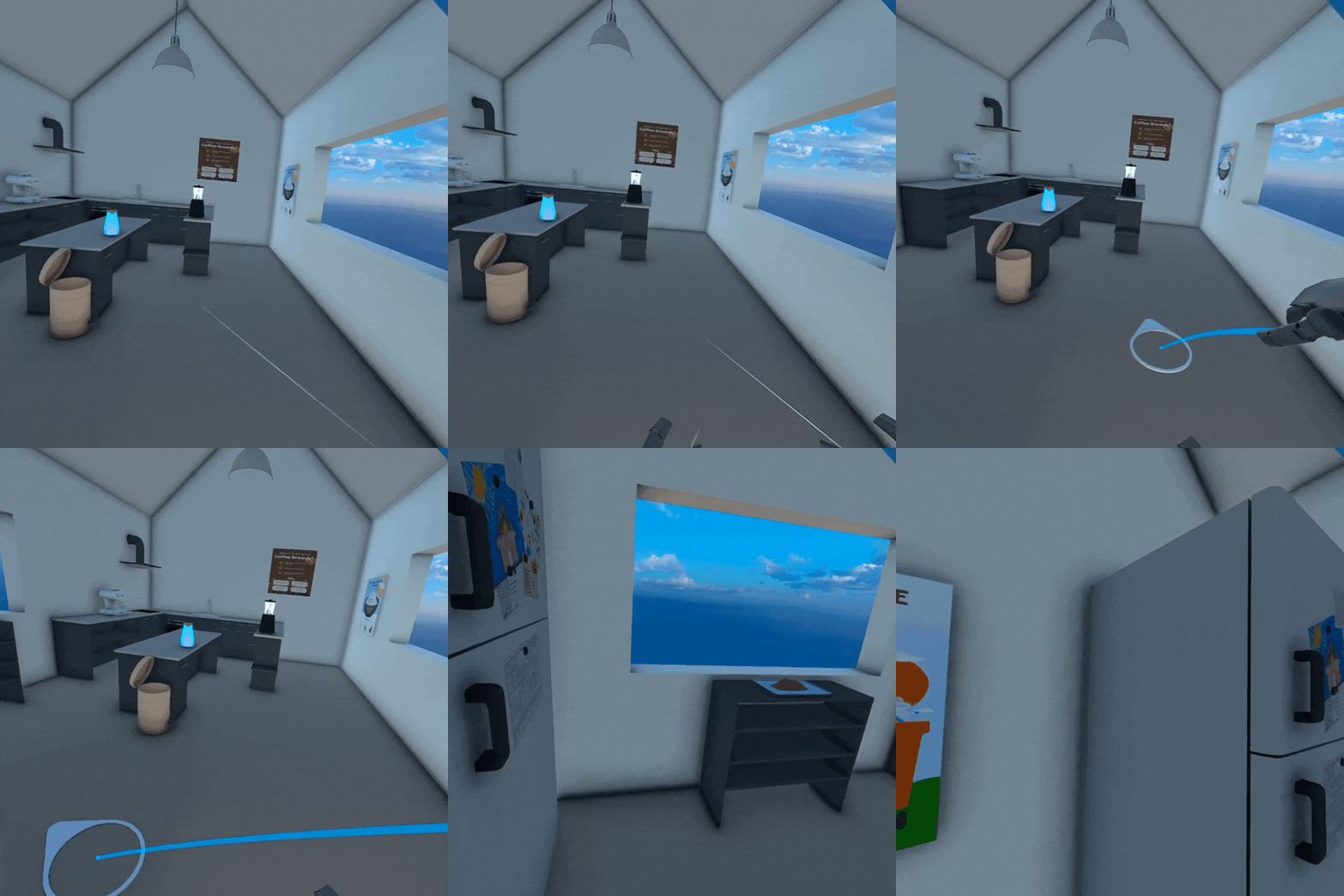
Left: Teleportation | Right: Smooth Locomotion with Vignette
Get hands-on! 👐 Pick up objects as you interact with the world around you!

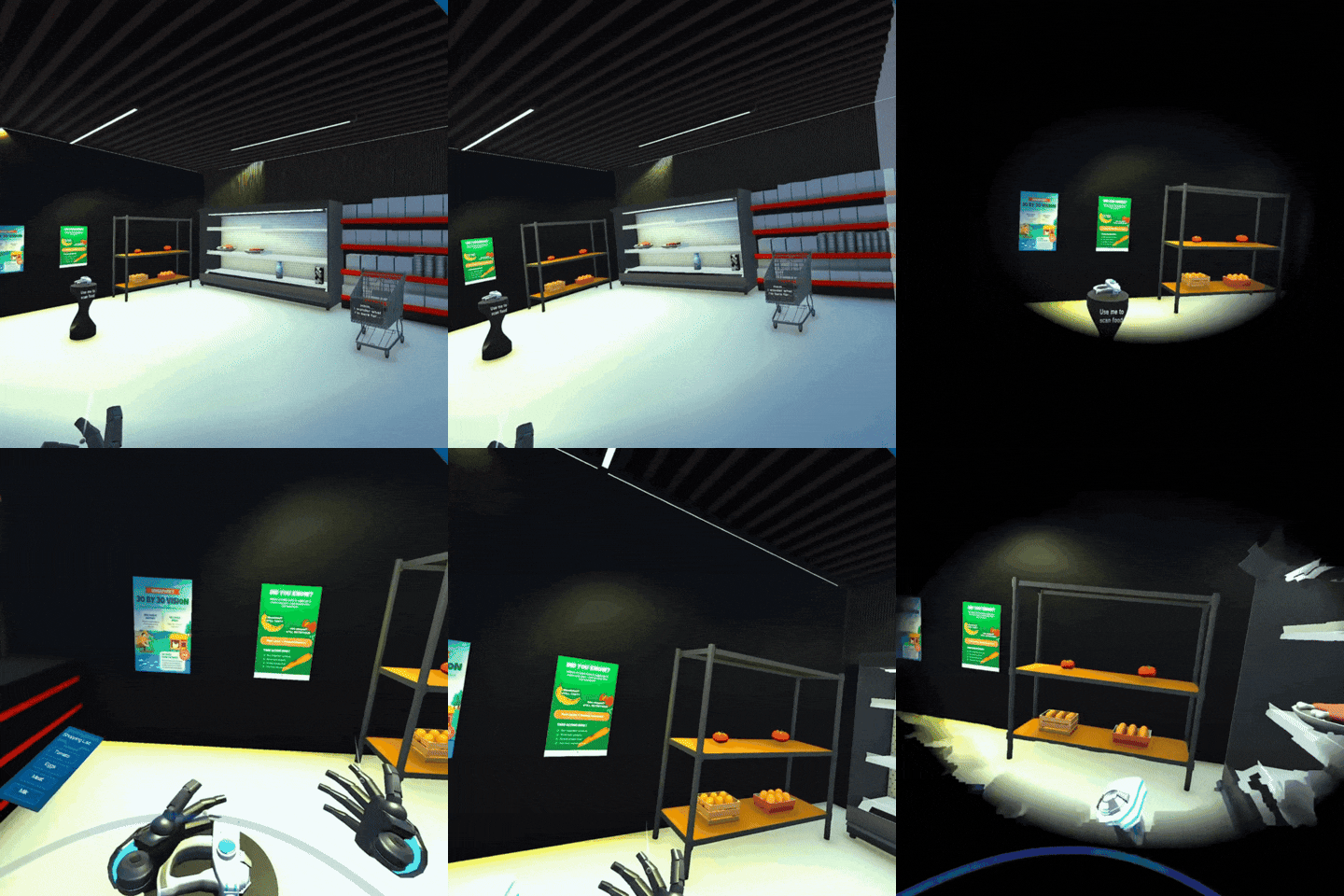
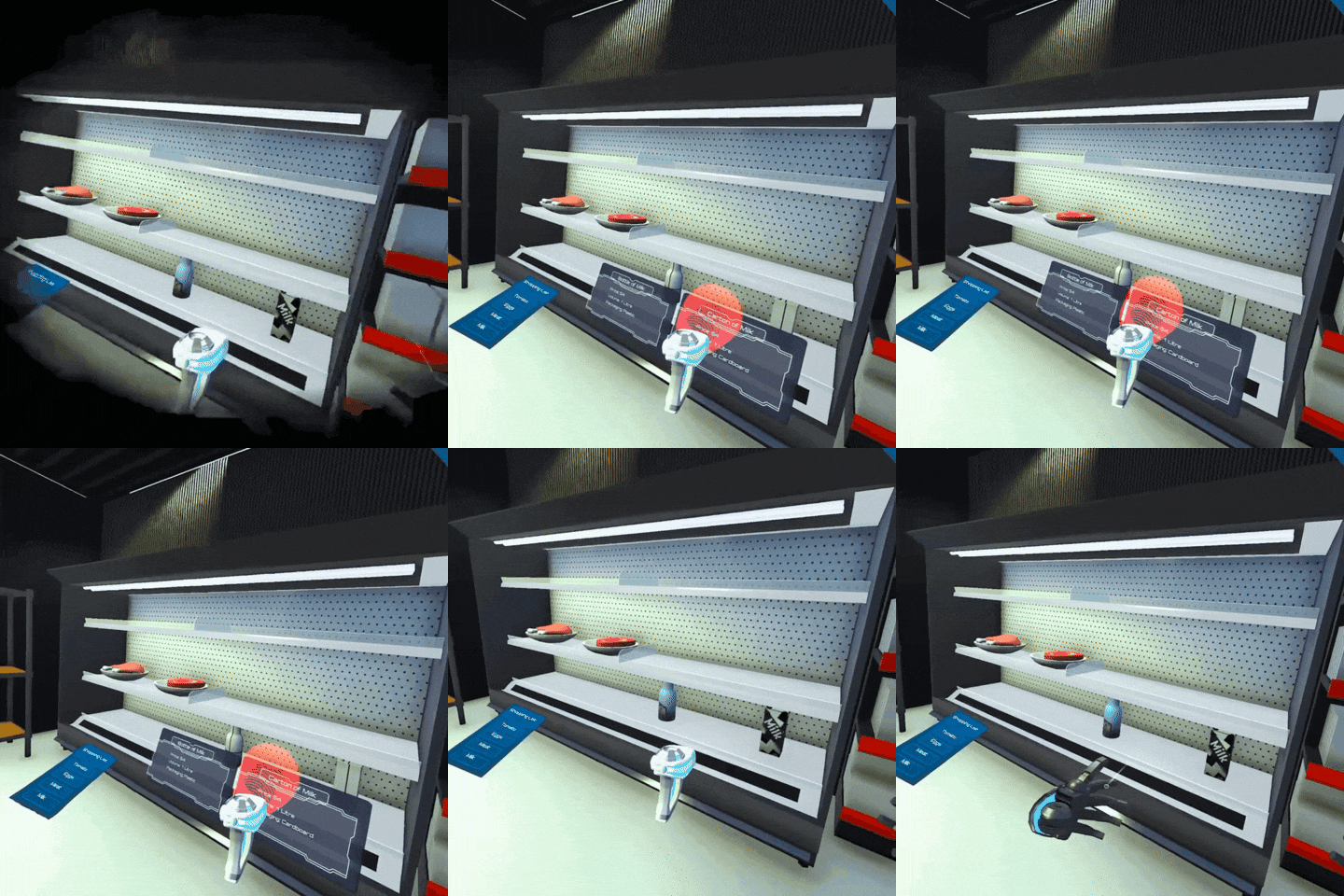
Scan & learn! 📲✨ Point at food objects to reveal fun, bite-sized info in a sleek, eye-catching overlay!
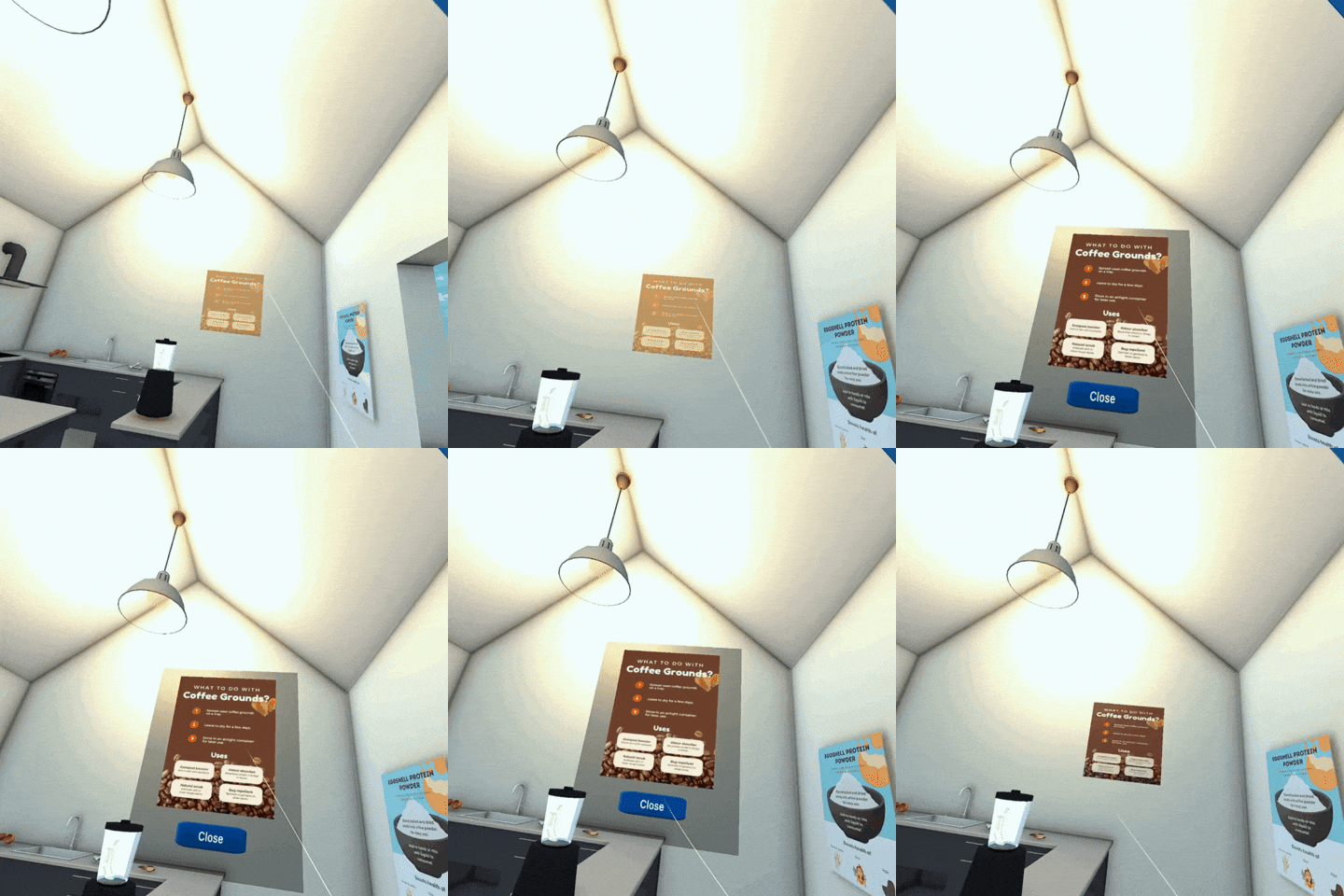
Posters aren’t just for looks! 🖼️ Get up close and interact with them for surprises, hints, and extra knowledge!
Immerse yourself! 🎧✨ A carefully crafted soundtrack and realistic audio effects bring the world to life—setting the perfect mood for your adventure! 🌱🔊
Never miss a thing! 💬 Subtitles ensure you catch every word, so you can focus on solving puzzles & saving the planet! 🌍

Preparations:
-
To play our game, ensure that the Unity version you are using is 6.40.1f. There may be compatibility issues if run in other versions of Unity.
-
Ensure that your Unity has the Android SDK downloaded.
-
As for the hardware, this is developed and tested with Meta Quest 2 & 3, so you are recommended to use those for the hardware.
-
Clone our project with the following command:
git clone https://github.com/florentianayuwono/meltdown.git -
Open the project in Unity 6.40.1f.
-
Once the project has loaded, under
Project, go to theAssets folder > Scenesand drag theStartSceneto the Hierarchy. -
Go to
Edit > Project Settings > XR Plug-in Management > OpenXR. SetRender ModetoMulti-pass.

- Then, under
Edit > Project Settings > Player, ensure thatActive Input Handlingis set to eitherBothorInput System Package (New). Please restart your Unity if you are prompted to do so.

-
Plug in your VR device.
-
If you are using Windows, you can link your Meta Quest to the Meta Quest Link application with this guide. Press the 'Play' button in Unity after linking up your Meta Quest with the Meta Quest Link app.
Otherwise:
- Go to
File > Build Profiles. Click onAndroidand clickSwitch Platform. If you are prompted to restart your Unity, please do so. - Ensure that there is the
Activegreen box beside theAndroidoption, as shown in the screenshot below.

-
Under
File > Build Profiles > Platform Settings, findRun Deviceand set it to your Meta Quest. -
Click
Build and Runand enjoy the game!
-
Voiceovers: hume.ai & ElevenLabs
-
Acacia Chong Xiao Xuan
-
Florentiana Yuwono
-
Melissa Anastasia Harijanto
-
Xu Yi
P.S. If you look closely in the fridge, you might just spot a little surprise—we may or may not have snuck ourselves in as secret ingredients... 👀🐟🍡🍦🐙
Should there be any problems encountered with the experience, feel free to raise an issue in our repository!