This is an MCP Server that wraps the Azure CLI, adds a nice prompt to improve how it works, and exposes it.
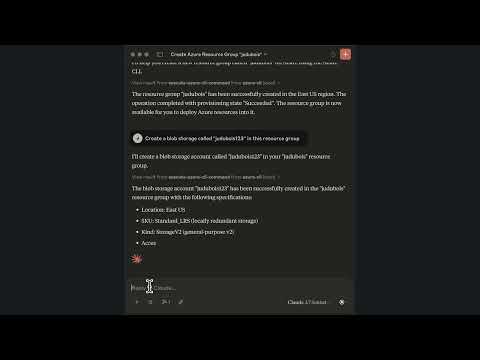
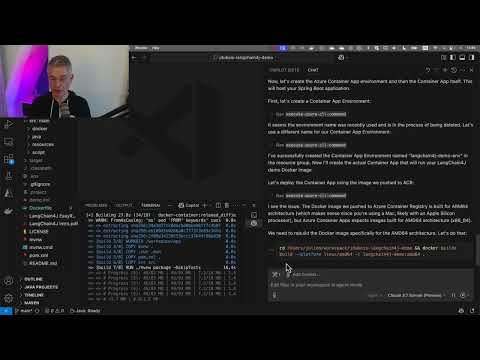
It has access to the full Azure CLI, so it can do anything the Azure CLI can do. Here are a few scenarios:
- Listing your resources and checking their configuration. For example, you can get the rate limits of a model deployed to Azure OpenAI.
- Fixing some configuration or security issues. For example, you can ask it to secure a Blob Storage account.
- Creating resources. For example, you can ask it to create an Azure Container Apps instance, an Azure Container Registry, and connect them using managed identity.
As the MCP server is driven by an LLM, we would recommend to be careful and validate the commands it generates. Then, if you're using a good LLM like Claude 3.7 or GPT-4o, which has excellent training data on Azure, our experience has been very good.
Please read our License which states that "THE SOFTWARE IS PROVIDED "AS IS", WITHOUT WARRANTY OF ANY KIND", so you use this MCP server at your own risk.
Short answer: NO.
This MCP server runs az commands for you, and could be hacked by an attacker to run any other command. The current
implementation, as with most MCP servers at the moment, only works with the stio transport:
it's supposed to run locally on your machine, using your Azure CLI credentials, as you would do by yourself.
In the future, it's totally possible to have this MCP server support the http transport, and an Azure token
authentication, so that it could be used remotely by different persons. It's a second step, that will be done once the
MCP specification and SDK are more stable.
This MCP server currently only works with the stdio transport, so it should run locally on your machine, using your Azure CLI credentials.
This server can run as a Java application or inside a Docker container. If Java is installed on your machine, this first option is probably the easiest one. If you don't have Java installed, or if you want to have something a bit more secure, you can use the second option.
- Install the Azure CLI: you can do this by following the instructions here.
- Authenticate to your Azure account. You can do this by running
az loginin your terminal. - Make sure you have Java 17 or higher installed. You can check this by running
java -versionin your terminal.
Binaries are available on the GitHub Release page, here's how you can download the latest one with the GitHub CLI:
- Download the latest release:
gh release download --repo jdubois/azure-cli-mcp --pattern='azure-cli-mcp.jar'
To use the server from Claude Desktop, add the server to your claude_desktop_config.json file. Please note that you
need to point to the location
where you downloaded the azure-cli-mcp.jar file.
{
    "mcpServers": {
        "azure-cli": {
            "command": "java",
            "args": [
                "-jar",
              "~/Downloads/azure-cli-mcp.jar"
            ]
        }
    }
}
To use the server from VS Code Insiders, here are the steps to configure it:
- Install GitHub Copilot
- Install this MCP Server using the command palette:
MCP: Add Server... - Configure GitHub Copilot to run in
Agentmode, by clicking on the arrow at the bottom of the the chat window - On top of the chat window, you should see the
azure-cli-mcpserver configured as a tool
Create an Azure Service Principal and set the AZURE_CREDENTIALS environment variable. You can do this by running the
following command in your terminal:
az ad sp create-for-rbac --name "azure-cli-mcp" --role contributor --scopes /subscriptions/<your-subscription-id>/resourceGroups/<your-resource-group> --json-authThis will create a new Service Principal with the specified name and role, and output the credentials in JSON format.
To use the server from Claude Desktop, add the server to your claude_desktop_config.json file.
The AZURE_CREDENTIALS environment variable should be set to the JSON output from the previous command.
{
  "mcpServers": {
    "azure-cli": {
      "command": "docker",
      "args": [
        "run",
        "-i",
        "--rm",
        "-e",
        "AZURE_CREDENTIALS",
        "ghcr.io/jdubois/azure-cli-mcp:latest"
      ],
      "env": {
        "AZURE_CREDENTIALS": "{\"clientId\":\"...\",\"clientSecret\":\"...\",..."
      }
    }
  }
}
To use the server from VS Code Insiders, here are the steps to configure it:
- Install GitHub Copilot
- Install this MCP Server using the command palette:
MCP: Add Server... - Configure GitHub Copilot to run in
Agentmode, by clicking on the arrow at the bottom of the the chat window - On top of the chat window, you should see the
azure-cli-mcpserver configured as a tool