


Turn your mobile phone into a powerful wireless remote control for your Windows PC. This application runs a secure local web server, allowing you to control your mouse, keyboard, and media from any modern mobile browser on your network.
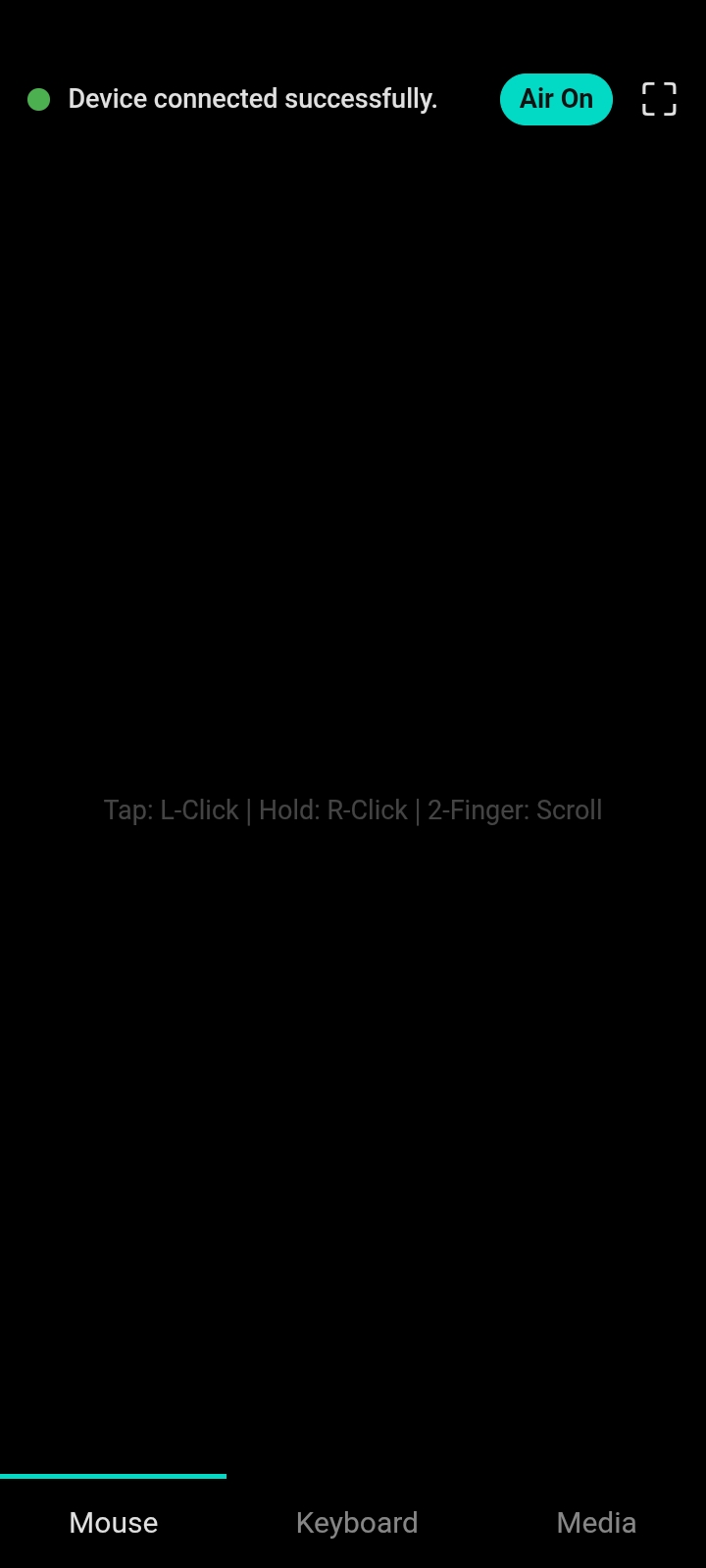
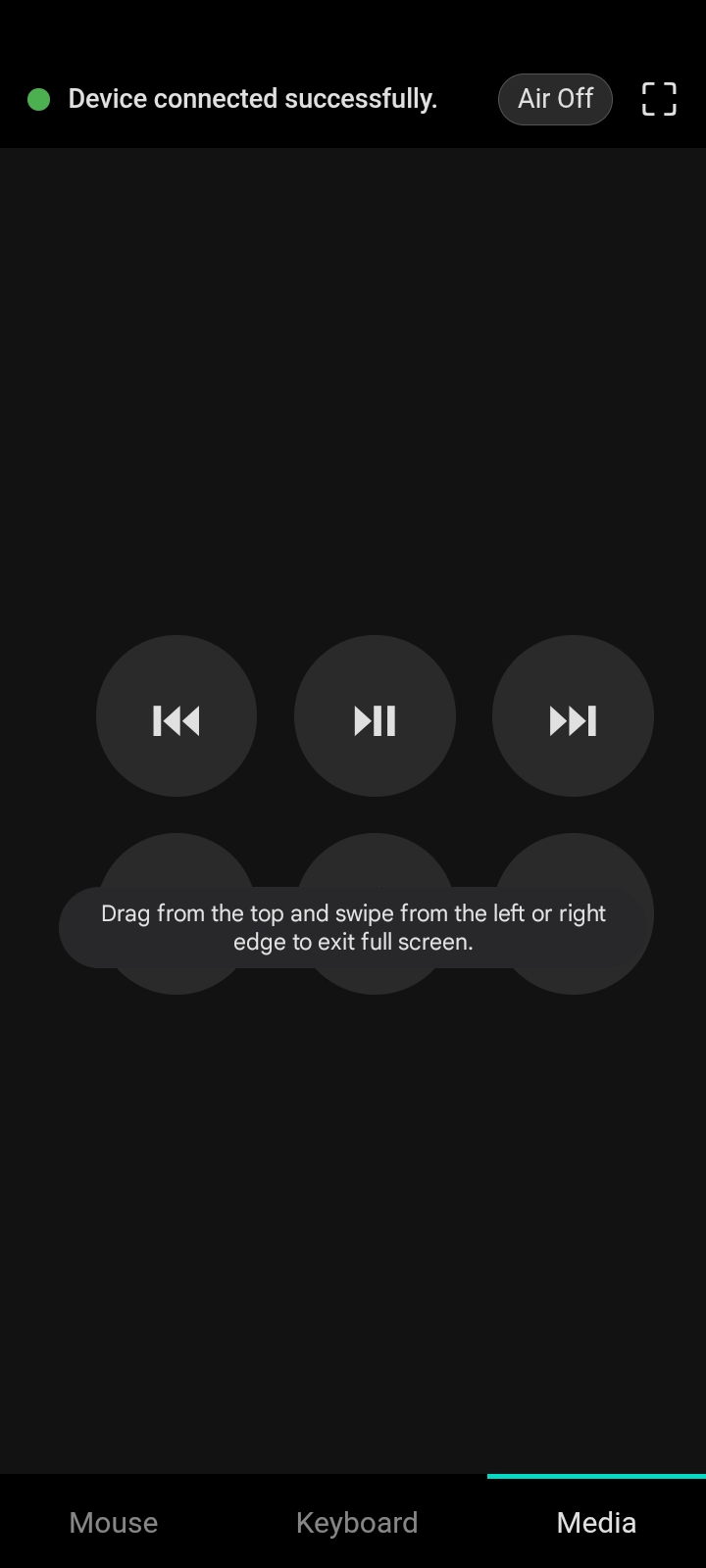
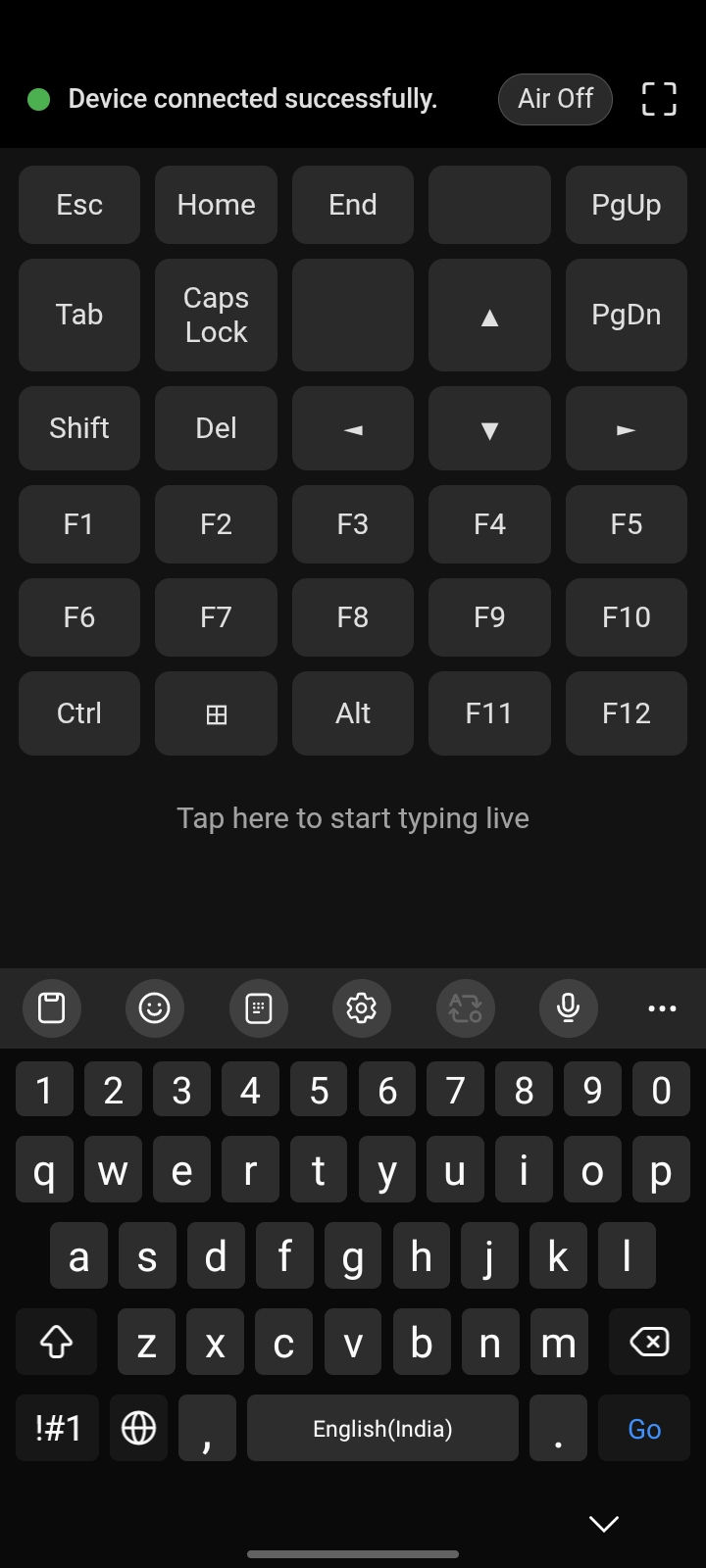
See how, Live Website looks like
 |
 |
 |
|---|
- Headless & Lightweight: No main window on your PC. The entire application runs silently in the system tray.
- Zero Installation on Mobile: No app to download. Simply scan a QR code to open the web interface in your phone's browser.
- Dual Mouse Modes:
- Air Mouse: Use your phone's gyroscope to move the cursor with intuitive hand movements.
- Advanced Touchpad: A full-featured touchpad with a complete suite of multi-finger gestures.
- Live Keyboard: Type directly on your computer from your mobile keyboard, complete with special keys (F1-F12, Ctrl, Alt, etc.) and shortcut combos.
- Advanced Gesture Control:
- Scroll: Two-finger drag.
- Zoom: Two-finger pinch.
- Right-Click: Press and hold.
- Task View: Three-finger swipe up.
- Show Desktop: Three-finger swipe down.
- Switch Apps: Three-finger swipe left/right.
- Switch Virtual Desktops: Four-finger swipe left/right.
- Edge Swipes: Access Widgets and the Notification Center.
- Secure & Private:
- All communication happens over HTTPS on your local network. Your data never leaves your home.
- Only one device can be connected at a time.
- Physical input from your PC's mouse or keyboard temporarily pauses remote input for security.
- Highly Configurable:
- Easily change the server port.
- Adjust Air Mouse and Touchpad sensitivity.
- Enable or disable the startup-with-Windows feature directly from the tray icon.
- Block specific IP addresses from connecting.
Follow these steps to get the server running on your Windows PC.
- Windows 10 or 11.
- Python 3.9+ installed. Make sure to check the box "Add Python to PATH" during installation.
- Your PC and mobile phone must be connected to the same Wi-Fi network.
Clone this repository to your local machine:
git clone https://github.com/kndnsow/remote-keyboard-mouse.git
cd remote-keyboard-mouseInstall the required Python packages using pip:
pip install -r requirements.txt(You will need to create a requirements.txt file. See the section below.)
For the secure HTTPS connection to work, you need to generate a self-signed certificate. Open a command prompt in the project directory and run:
openssl req -x509 -newkey rsa:4096 -nodes -out cert.pem -keyout key.pem -days 365You can press Enter to accept the default values for all prompts. This will create cert.pem and key.pem.
You can now start the server by running the app.py script:
python app.pyA new icon will appear in your system tray. The server is now running!
- Connect Your Phone: Right-click the tray icon on your PC and select "Show QR Code".
- Scan: Use your phone's camera to scan the QR code that appears on your screen.
- Trust the Connection: Your mobile browser will show a security warning because the SSL certificate is self-signed. This is expected and safe. Click "Advanced" and then "Proceed to [your IP address]".
- Control Your PC: The remote control interface will load. You can now use the touchpad, air mouse, keyboard, and media controls.
For ultimate portability, you can compile the entire application into a single .exe file that can be run on any Windows PC without needing Python installed.
pip install pyinstallerOpen a command prompt in the project's root directory and run the following command:
pyinstaller --onefile --windowed --icon=static/icon.ico --add-data "index.html;." --add-data "settings.html;." --add-data "cert.pem;." --add-data "key.pem;." --add-data "static;static" app.pyThis command bundles everything—your script, web files, icon, and SSL certificates—into one package.
Navigate to the dist folder. Inside, you will find app.exe. This is your complete, standalone remote control server. You can rename it and move it anywhere!
For the setup instructions to work, create a file named requirements.txt in your project's root directory and add the following lines:
Flask
pyautogui
pystray
Pillow
qrcode
pynput
pywin32
Contributions, issues, and feature requests are welcome! Feel free to check the issues page.
Distributed under the MIT License. See LICENSE for more information.
Created with ❤️🔥 by kndnsow