Some custom code for handling incoming Twilio SMS messages in a REDCap project
Here is some code I wrote for handling incoming text messages from study participants. Often, when you are using Twilio ot send alerts and survey invites from REDCap, participants respond by replying to the text message. Standard behaviour in REDCap (unless you are doing an SMS conversation survey) is for these incoming text messages to disappear into the void.
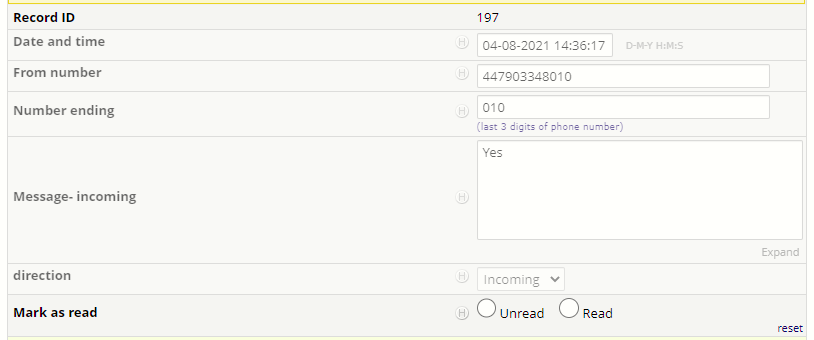
This code will save incoming text messages to a repeating form in your project, where you can read them, mark them as read, and even reply to them directly from REDCap. It will check the 'from number' of the incoming text against the participant phone numbers in the project, and if it finds a match, it will store the SMS in the appropriate record. If it does not find a matchm it will store it in record #1 by default.
A zip file of the instrument used to save and send SMS messages. This should be added to your project and set as a repeating form.
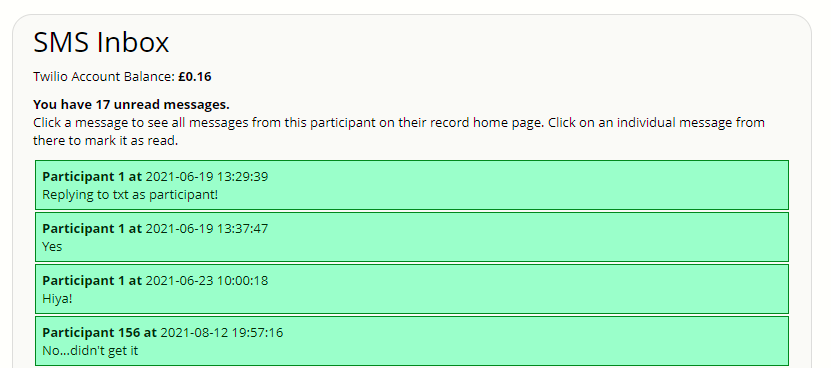
A hook file to display your 'SMS inbox' on your project home page. This shows all your unred incoming messages, with links through to the record home page. It will also display your remaining Twilio Account balance.
This is the file that does most of the work parsing and saving incoming text messages. You'll need to put it in the hooks folder for your redcap project, and also set it as the incoming SMS webhook in your Twilio messaging service. **Nb. this means that you won't be able to use SMS conversations in your REDCap project. ** this file also sends an email to a specified email address each time an incoming SMS arrives. This is probably no longer neccessary, and could be done with an Alerts and Notifications trigger now.
Finally, if you want to be able to send outgoing SMS messages from REDCap too, add the following to your alerts and notifications:

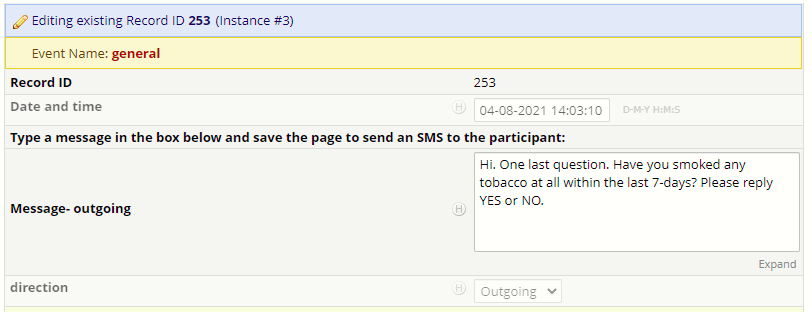
To send an SMS message to a participant, simply open the SMS instrument in their record, create a new outgoing instance, type your message and save it.
You can then see your conversation history with the participant on the record home page:
