General Guide for New Git Users
- Why use Git?
- Installing Git
- Git Bash
- Creating a Local Repository
- Cloning a Remote Repository
- Branching
- Merging
- Committing

Work on your projects locally offline and update those changes when you are online!

You can undo mistakes very easily. Keeping track of everytime your code is committed allows for you to go back in the history and change the code!

You don't have to worry about losing your code! If you have your code locally and your computer get destroyed, you can get the code from the remote server. If the remote server goes down you have the code locally on your device!

You can choose add certain changes or not when committing to your branch. Let's say you want this certain change but not another one since you're not done with it.. Totally possible!

You can have your very own workflow, everything is up to you how you want it. You can work on a main repository or even a sub repository the way you want to! Even if you're in a team, you can work on your own function in your own repository your way!

Git BASH is a BASH emulator that allows Windows users to run Git via the command line. The syntax is exactly like regular Git. To install it, download the file from here, then click on the installer and follow the instructions.
To start using git commands in Git BASH, you first have to be in your project folder. To navigate there using Git BASH, you can use the “cd ” command, which allows you to move around various directories. For example, if my project is located at C:/Users/BobJones/GitHub/ProjectName, to access ProjectName I would type cd C/Users/BobJones/GitHub/ProjectName.
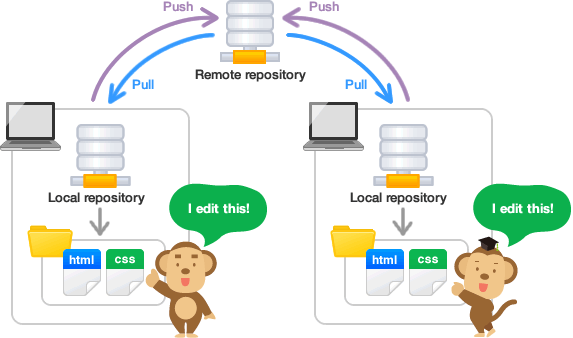
A repository is a space to store and access project files as well as different versions of the project. In general, only people who have been given access (collaborators) can edit, add, remove, and otherwise change the project files.
There are 2 types of repositories: local and remote. A local repository is the copy of the repository that exists on your machine, whereas the remote repository is the one that exists on GitHub. Changing files in your local repository will not affect the remote repository until you commit your changes, meaning you upload your changes to GitHub.
Move into your GitHub folder using the cd <path> command. Then, use the git init command to create a local repository in your machine.
There are 2 main ways to clone a remote repository into your machine.
You can download the ZIP file and unzip it into your GitHub folder.
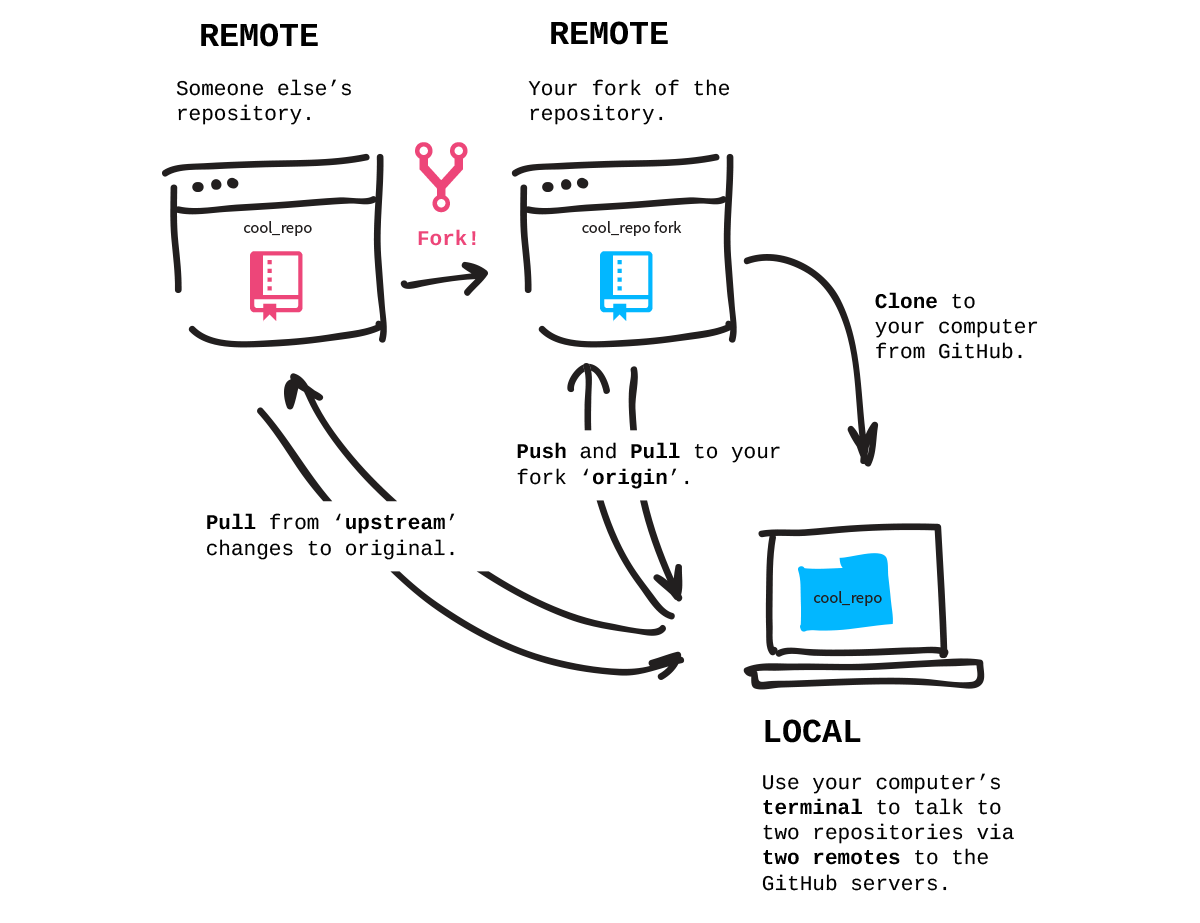
Go to your GitHub folder and type git clone <insert-url-here>

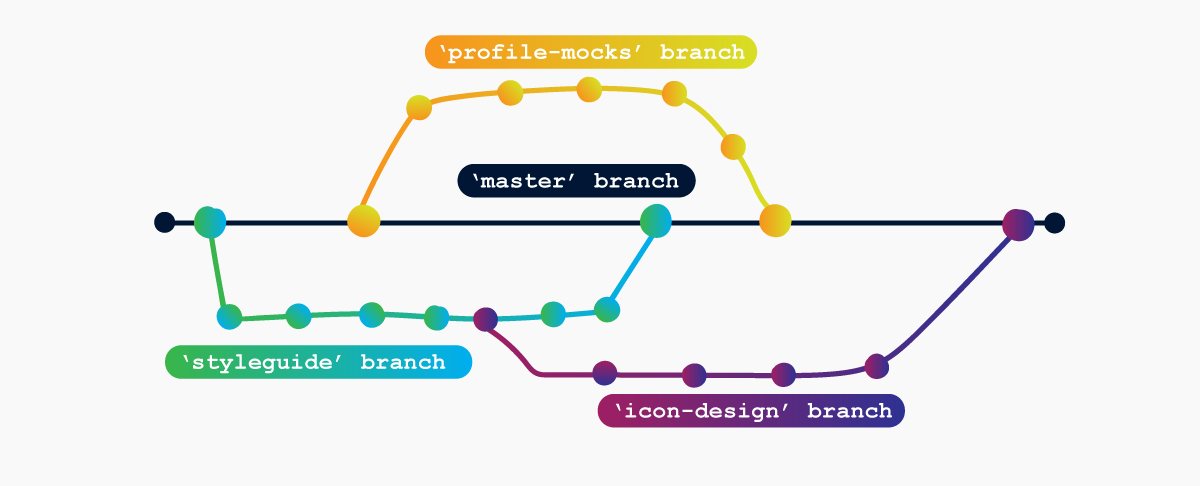
A branch is a separate version of the code. Using separate branches allows you to fiddle with the code without having to change things in the master branch. Using separate branches is especially helpful if you are (1) afraid of breaking something in master, or (2) working on a team. Each team member can work on their own version of the code without worrying about impeding on others’ work.
The branch is where the “official” version of the code is.
To create a branch on Git, you can use the command git remote add <name-of-the-remote> <name-of-new-branch>
To delete the local branch, use git branch -d <branch-name>. This will not affect the remote branch.
To delete the remote branch, type git push origin --delete <remote-branch>
Switching branches allows you to easily use a different version of the code. To do it, enter the command git checkout <branch-name>
To stash your code means to remove all the changes since the last commit and push these changes onto a stack. This can be done by saying git stash.
There are 2 ways to reapply the changes pushed onto the stack.
The first method is using git stash pop. This command removes the topmost stash from the stack, and then applies the changes in that stash back to your branch.
This method (git stash apply) does not remove the topmost stash from the stack. It leaves it there and applies the changes to your branch. This is similar to the stack function peek().
The purpose of merging is to apply changes from one branch to another branch. Oftentimes this occurs when you made changes in your personal branch, and now want to push (apply) these changes to the master branch.
Git fetch is a primary command used to download contents from a remote repository.
Git Pull is simply a git fetch followed by a git merge. You would use it to bring a local branch up-to-date with its remote version, while also updating your other remote-tracking branches.
When merging, sometimes the two versions of the code will conflict with one another. This can be seen in the code as
<<<<<<< HEAD
      LOCAL CODE
=======
      MASTER CODE
>>>>>>> master
To fix conflicts, compare the local code to the master code and determine which one you want to keep. Unnecessary code can be deleted from the branch. When finished with resolving the conflict, you can mark the file as resolved with git add <filename>.
If you are in the middle of a merge (e.g. fixing merge conflicts) and want to abort, git merge --abort will take you out of merging mode.
To commit code means to push it from your local branch into the remote branch on GitHub. To check which files have been changed since the last commit, use git status.
In addition, to add specific files to your next commit, you can use git add <filename>. Alternatively, if you want to add all changed files to your next commit, type git add ..
To finally commit and push your changes to your remote branch, type git commit followed by git push to finalize the commit.
Commits can also be reversed. To remove all local changes to your local branch, you can type git reset --hard HEAD. On the other hand, reverting to a previous commit can be done with git revert <commit-id>. The id can be found using git log.