Button Remapping
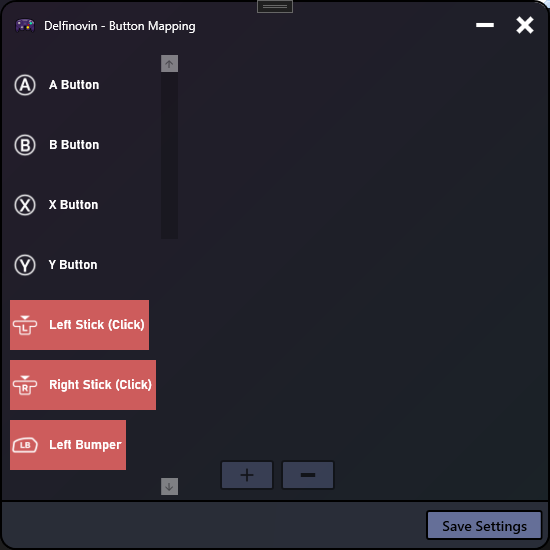
By default, Delfinovin maps the Gamecube controller buttons to the corresponding Xbox controller buttons. However, in some games and applications, this may lead to incorrect buttons being pressed. Delfinovin has support for remapping buttons and creating button combinations to activate buttons that the Gamecube controller does not have.
In order to get to the controller's button mapping page, plug in a controller and open its controller settings. Under the Controller Settings window, click on "Button Mapping" to open the button mapping window.
In the left column are all the Xbox buttons that can be mapped to. Xbox controllers have more buttons by default than a Gamecube controller (such as Left / Right Stick click and the Guide button), so by default such buttons are unmapped. Buttons that are not mapped are highlighted in red. To map Gamecube controller buttons to an output Xbox button, select it from the list and press the Plus button. This will add a drop down to the column on the right, which contains the buttons that can be assigned to the combination.
In order to remove a button from a selected combination, select the button from the list on the right and click on the Minus button to remove it. After mapping the buttons you'd like to have mapped (or unmapping them), click on "Save Settings" to confirm the changes to the button mapping.
- One important thing to remember is that when you map a Gamecube controller button to an output Xbox controller button, it does not remove it from any other output mappings. (For example, mapping X to the output B button will not remove it from the output X button. X will still get pressed) If you're trying to swap buttons around, remember to remove the Gamecube button from the one you're trying to swap from.