Input Recording
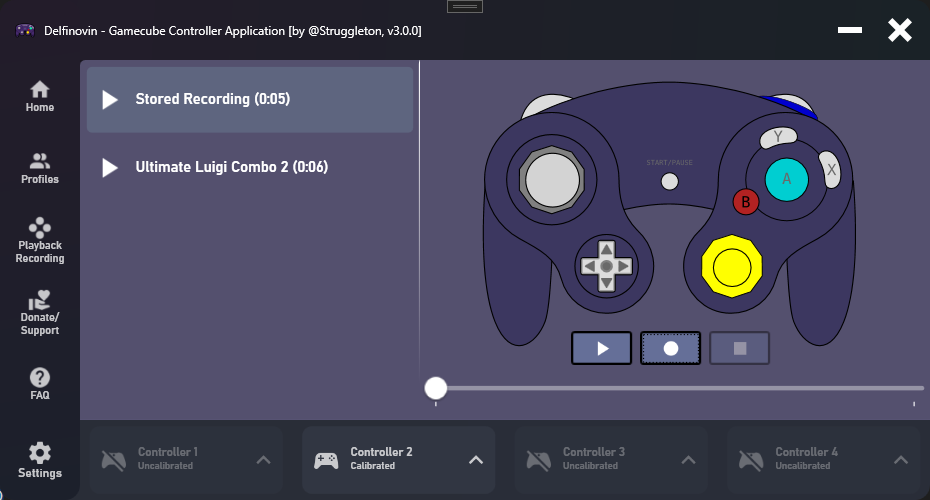 A new feature Delfinovin has now is recording and playing back inputs sequences. Button sequences can be recorded and played back through the "Playback Recording" tab from the navigation bar.
A recording session can be be started either by clicking on the recording button in the Playback tab OR pressing the hotkey combination assigned to starting a recording. For more information on hotkeys, check out the page on hotkey assignment.
- Note that while recording, other input recordings can not be played and vice versa (recordings can not be started while an input recording is playing.) You must stop the input recording before being able to play a recording.
After starting a recording, Delfinovin will begin recording the inputs from the controller selected from the controller bar at the bottom. Whenever you'd like to stop recording, either click on the recording button again OR press the assigned hotkey combination. The recording will then be stored to the first slot in the recording list and can be saved or cleared by right clicking on the entry.
After stopping a recording or selecting a stored/saved recording, the recording can be replayed. Play a recording by selecting a recording from the list and clicking on the Play button. This will bring up a menu to select which controller port to play the recording on.
- If a port with a controller connected is selected, the recording will play on that port and inputs from the user will not be registered until the recording is over or is stopped.
- If a port without a controller is plugged in, a virtual controller will be connected on the port for the recording to play on. After it is done playing, the virtual controller will be disconnected.
Recordings can be deleted in Delfinovin by right-clicking one from the list and selecting "Delete."