Setup Guide
Firstly, let's setup WinUSB. WinUSB is a driver that allows applications to communicate with hardware. Delfinovin uses it to communicate with the Gamecube adapter and read controller inputs. We can use Zadig in order to install the WinUSB driver to use with the Gamecube adapter.
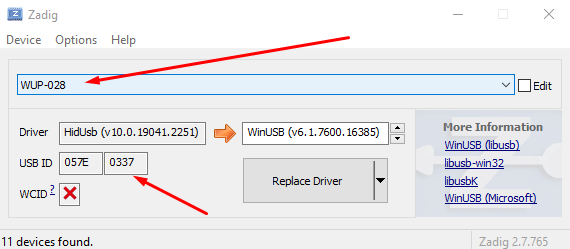
- Navigate to the Zadig home page, and download the newest version of Zadig.
- Once downloaded, open Zadig. In the Options tab, enable "List all Devices."
- This should add all of the USB devices currently connected to the computer to the dropdown in the middle.
-
Search for WUP-028 in the dropdown of devices. When selected, it should have a USB ID of 0573 0337 in the USB ID section.
- If it doesn't show up, and you're using a 3rd party adapter, try to find a USB device with the ID from above. The process is the same otherwise.
- After selecting the device in the drop-down, select WinUSB from the right textbox, and click "Replace Driver." Accept any system driver prompts that might come up.
- This might take a while, be patient while it installs the driver.
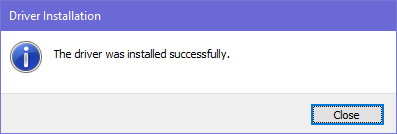
- It should come up with a dialog notifying you that it's finished installing after it completes. After getting this, you can close out of Zadig and move on to the next step.
Next, we need to install the .NET 7 Framework. This is different from the .NET Framework included with Windows. For more information why this is required, check the FAQ and Troubleshooting page in this wiki.
- Download the .NET 7 Desktop Runtime from the download page, downloading either the x86 or x64 based on what your computer is running.
- You can also open Delfinovin and it will prompt you if you'd like it to download the installer for you.
- Run the installer and follow the instructions to install .NET 7.
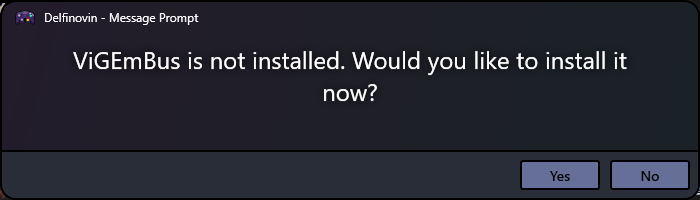
Finally, we need to install ViGEmBus. ViGEm is a library Delfinovin uses to create virtual Xbox controllers that can be used in games.
- Navigate to ViGEm's releases page and download the latest version of the software.
- You can also open Delfinovin and it will prompt you if you'd like it to download and run the installer for you.
- Run the installer and follow the instructions to install ViGEmBus.
- ViGEmBus might ask you to restart your PC to finalize the installation. If it does, restart your computer and come back to the guide.
Delfinovin should now work to read your controllers and create Xbox controllers you can use in game. You should also be able utilize Delfinovin's various features, such as input recording, button remapping, mappable hotkeys and input display now as well. Check out the other pages on this wiki for information on those features. If it doesn't check out the FAQ & Troubleshooting page for more information you can use to try and fix it.